
View architectures
Generic architecture
The architecture of a view is defined by XML data interpreted by the JavaScript framework.
For most views, there is a *.rng file defining the attributes and possible architectures.
Some views are not ruled by such a file either because they accept HTML content, or for performance
reasons.
Note
The current context and user access rights may impact the view abilities.
See also
Python expression
When evaluating node attributes, e.g. the readonly modifier, it is possible to provide a Python
expression that will be executed in an environment that has access to the following variables:
The names of all fields present in the current view, containing the value of the current record, except for
column_invisiblein list view; relational fields are given as a list of IDs;The ID of the current record;
parent: the record that refers to the container; only inside sub-views of relational fields;context (dict): the current view’s context;uid (int): the id of the current user;today (str): the current local date in theYYYY-MM-DDformat;now (str): the current local datetime in theYYYY-MM-DD hh:mm:ssformat.
Example
<field name="field_a" readonly="True"/>
<field name="field_b" invisible="context.get('show_me') and field_a == 4"/>
Example
<field name="field_a"/>
<field name="x2m">
    <!-- sub-view -->
    <form>
        <field name="field_b" invisible="parent.field_a"/>
    </form>
</field>
Form
Form views are used to display the data from a single record. They are composed of regular HTML with additional semantic and structural components.
The root element of form views is form.
<form>
    ...
</form>
Root attributes
Optional attributes can be added to the root element form to customize the view.
- string
The view title. It is displayed only if you open an action that has no name and whose target is
new(opening a dialog).- Requirement
Optional
- Type
- Default
''
- create
Disable/enable record creation on the view.
- Requirement
Optional
- Type
- Default
True
- edit
Disable/enable record edition on the view.
- Requirement
Optional
- Type
- Default
True
- duplicate
Disable/enable record duplication on the view through the Action dropdown.
- Requirement
Optional
- Type
- Default
True
- delete
Disable/enable record deletion on the view through the Action dropdown.
- Requirement
Optional
- Type
- Default
True
- js_class
The name of the JavaScript component the webclient will instantiate instead of the form view.
- Requirement
Optional
- Type
- Default
''
- disable_autofocus
Disable automatic focusing on the first field in the view.
- Requirement
Optional
- Type
- Default
False
Semantic components
Semantic components tie into the Odoo system and allow interaction with it.
Form views accept the following children semantic components: field, label, button, Chatter widget, and Attachments preview widget.
Placeholders are denoted in all caps.
field: display field values
The field element renders (and allows editing of, possibly) a single field of the current record.
Using the same field multiple times in a form view is supported, and the fields can receive
different values for the invisible and readonly attributes. These fields may have the same
values but can be displayed differently. However, the behavior is not guaranteed when several fields
exist with different values for the required attribute.
<form>
    <field name="FIELD_NAME"/>
</form>
The field element can have the following attributes:
- name
The name of the field to render.
- Requirement
Mandatory
- Type
- widget
The widget used to represent the field. The selected widget can change the way the field is rendered and/or the way it can be edited. It refers to a Javascript implementation (an Owl component) registered to the
fieldsregistry.- Requirement
Optional
- Type
- id
The node id. Useful when there are several occurrences of the same field in the view (see label: display field labels).
- Requirement
Optional
- Type
- Default
The field name
- string
The label of the field.
- Requirement
Optional
- Type
- Default
The
stringattribute of the model’s field
- help
The tooltip displayed when hovering the field or its label.
- Requirement
Optional
- Type
- Default
''
- options
The configuration options for the field’s widget (including default widgets), as a Python expression that evaluates to a dict.
For relation fields, the following options are available:
no_create,no_quick_create,no_open, andno_create_edit.Example
<field name="tag_ids" widget="many2many_tags" options="{'color_field': 'FIELD_NAME', 'no_quick_create': True}"/>
- Requirement
Optional
- Type
- Default
{}
- readonly
Whether the field can be modified by the user (
False) or is read-only (True), as a Python expression that evaluates to a bool.Example
<field name="fname_a" readonly="True"/>
<field name="fname_b" readonly="name_a in [fname_b, parent.fname_d]"/>
- Requirement
Optional
- Type
- Default
False
- required
Whether the field can be left empty (
False) or must be set (True), as a Python expression that evaluates to a bool.Example
<field name="fname_a" required="True"/>
<field name="fname_b" required="fname_c != 3"/>
- Requirement
Optional
- Type
- Default
False
- invisible
Whether the element is visible (
False) or hidden (True), as a Python expression that evaluates to a bool.Note
There are two uses for the
invisibleattribute:Usability: to avoid overloading the view and to make it easier for the user to read, depending on the content.
Technical: a field must be present (invisible is enough) in the view to be used in a Python expression.
Example
<field name="fname_b" invisible="fname_c != 3 and fname_a == parent.fname_d"/>
<group invisible="fname_c != 4">
    <field name="fname_c"/>
    <field name="fname_d"/>
<group>
- Requirement
Optional
- Type
- Default
False
- groups
The comma-separated list of user groups to whom the element is displayed. Users who do not belong to at least one of these groups are unable to see the element. Groups can be prefixed with the negative
!operator to exclude them.Example
<field name="FIELD_NAME" groups="base.group_no_one,!base.group_multi_company"/>
- Requirement
Optional
- Type
- Default
''
- domain
The filters to apply when displaying existing records for selection, as a Python expression that evaluates to a domain.
Example
<field name="fname" domain="[('fname_a', '=', parent.fname_b)]"/>
- Requirement
Optional
- Type
- Default
[]- Scope
Relational fields
- context
The context to use when fetching possible values and creating or searching records, as a Python expression that evaluates to a dict.
Example
<field name="fname" context="{
    'TYPE_view_ref': 'ADDON.MODEL_view_TYPE',
    'group_by': 'FIELD_NAME',
    'default_FIELD_NAME': ANY,
    'search_default_FIELD_NAME': True,
    'OTHER_BUSINESS_KEY': ANY,
  }"/>
- Requirement
Optional
- Type
- Default
{}- Scope
Relational fields
- nolabel
Whether the field label should be hidden.
- Requirement
Optional
- Type
- Default
False- Scope
Fields that are a direct child of a
groupelement
- placeholder
The help message to display on empty fields. It can replace field labels in complex forms. However, it should not be an example of data, as users may confuse placeholder text with filled fields.
- Requirement
Optional
- Type
- Default
''
- mode
The comma-separated list of display modes (view types) to use for the field’s linked records. Allowed modes are:
list,form,kanban, andgraph.- Requirement
Optional
- Type
- Default
list- Scope
One2manyandMany2manyfields
- class
The HTML class to set on the generated element.
The styling uses the Bootstrap framework and UI icons. Common Odoo classes include:
oe_inline: prevents the usual line break following fields, and limits their span;oe_left,oe_right: floats the element to the corresponding direction;oe_read_only,oe_edit_only: only displays the element in the corresponding form mode;oe_avatar: for image fields, displays images as an “avatar” (max 90x90 square);oe_stat_button: defines a particular rendering to dynamically display information while being clickable to target an action.
Example
<field name="fname" class="oe_inline oe_left oe_avatar"/>
Example
<button type="object" name="ACTION" class="oe_stat_button" icon="FONT_AWESOME" help="HELP">
   <div class="o_field_widget o_stat_info">
      <span class="o_stat_value"><FIELD/></span>
      <span class="o_stat_text">TEXT</span>
   </div>
</button>
- Requirement
Optional
- Type
- Default
''
- filename
The name of the related field providing the name of the file.
- Requirement
Optional
- Type
- Default
''- Scope
Binaryfields
- password
Whether the field stores a password and thus its data should not be displayed.
- Requirement
Optional
- Type
- Default
False- Scope
Charfields
- kanban_view_ref
The XMLID of the specific Kanban view record that should be used when selecting records in a mobile environment.
- Requirement
Optional
- Type
- Default
''- Scope
Relational fields
- default_focus
Whether the field is focused when the view opens. It can be applied to only one field of a view.
- Requirement
Optional
- Type
- Default
False
Note
Relational fields nodes can contain specific subviews.
Example
<field name="children_ids">
   <list>
      <field name="name"/>
   </list>
   <form>
      <field name="id"/>
      <field name="name"/>
   </form>
</field>
label: display field labels
When a field component is not placed directly
inside a group, or when its nolabel attribute is
set, the field’s label is not automatically displayed alongside its value. The label component is
the manual alternative of displaying the label of a field.
<form>
    <div class="col col-md-auto">
        <label for="FIELD_NAME" string="LABEL"/>
        <div>
            <field name="FIELD_NAME" class="oe_inline"/>
        </div>
    </div>
</form>
The label element can have the following attributes:
- for
The reference to the field associated with the label. It can be either the name of the field, or its id (the
idattribute set on the field).When there are several occurrences of the same field in the view, and there are several
labelcomponents associated with these field nodes, these labels must have uniqueforattribute; in this case, referencing theidattribute of the corresponding field nodes.- Requirement
Mandatory
- Type
- string
The label to display.
- Requirement
Optional
- Type
- Default
The field’s label coming from the field definition on the model
- class
The HTML class to set on the generated element.
The styling uses the Bootstrap framework and UI icons. Common Odoo classes include:
oe_inline: prevents the usual line break following fields, and limits their span;oe_left,oe_right: floats the element to the corresponding direction;oe_read_only,oe_edit_only: only displays the element in the corresponding form mode;oe_avatar: for image fields, displays images as an “avatar” (max 90x90 square);oe_stat_button: defines a particular rendering to dynamically display information while being clickable to target an action.
Example
<field name="fname" class="oe_inline oe_left oe_avatar"/>
Example
<button type="object" name="ACTION" class="oe_stat_button" icon="FONT_AWESOME" help="HELP">
   <div class="o_field_widget o_stat_info">
      <span class="o_stat_value"><FIELD/></span>
      <span class="o_stat_text">TEXT</span>
   </div>
</button>
- Requirement
Optional
- Type
- Default
''
- invisible
Whether the element is visible (
False) or hidden (True), as a Python expression that evaluates to a bool.Note
There are two uses for the
invisibleattribute:Usability: to avoid overloading the view and to make it easier for the user to read, depending on the content.
Technical: a field must be present (invisible is enough) in the view to be used in a Python expression.
Example
<field name="fname_b" invisible="fname_c != 3 and fname_a == parent.fname_d"/>
<group invisible="fname_c != 4">
    <field name="fname_c"/>
    <field name="fname_d"/>
<group>
- Requirement
Optional
- Type
- Default
False
Chatter widget
The chatter widget is the communication and log tool allowing to email colleagues and customers directly from a record (task, order, invoice, event, note…).
It is added with a div element with the class oe_chatter when the model inherits the
mail.thread mixin.
Example
<form>
<sheet>
...
</sheet>
<div class="oe_chatter">
<field name="message_follower_ids"/>
<field name="activity_ids"/>
<field name="message_ids" options="OPTIONS"/>
</div>
</form>
Attachments preview widget
The attachment preview widget is added with an empty div element with the class
o_attachment_preview.
Example
<form>
<sheet>
...
</sheet>
<div class="o_attachment_preview"/>
<form>
Structural components
Structural components provide structure or “visual” features with little logic. They are used as elements or sets of elements in form views.
Form views accept the following children structural components: group, sheet, notebook, notebook, newline, separator, header, footer, Buttons container, and Title container.
Placeholders are denoted in all caps.
group: define columns layouts
The group element is used to define column layouts in forms. By default, groups define 2 columns,
and most direct children of groups take a single column.
field elements that are direct children of groups
display a label by default, and the label and the field itself have a colspan of 1 each.
Children are laid out horizontally (they try to fill the next column before changing row).
<form>
<group>
...
</group>
</form>
The group element can have the following attributes:
- string
The title displayed for the group.
- Requirement
Optional
- Type
- Default
''
- col
The number of columns in a
group.- Requirement
Optional
- Type
- Default
2
- colspan
The number of columns taken by a child element.
- Requirement
Optional
- Type
- Default
1
- invisible
Whether the element is visible (
False) or hidden (True), as a Python expression that evaluates to a bool.Note
There are two uses for the
invisibleattribute:Usability: to avoid overloading the view and to make it easier for the user to read, depending on the content.
Technical: a field must be present (invisible is enough) in the view to be used in a Python expression.
Example
<field name="fname_b" invisible="fname_c != 3 and fname_a == parent.fname_d"/> <group invisible="fname_c != 4"> <field name="fname_c"/> <field name="fname_d"/> <group>
- Requirement
Optional
- Type
- Default
False
Possible structure and representation of its rendering
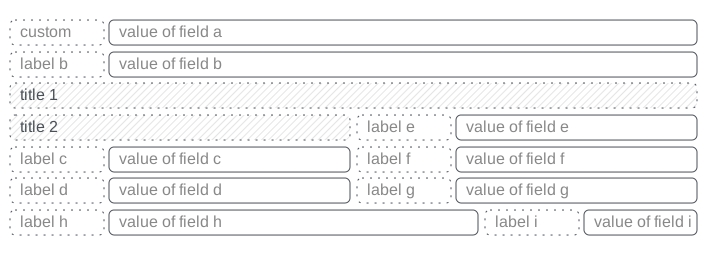 |
<group>
<field name="a" string="custom"/>
<field name="b"/>
</group>
<group string="title 1">
<group string="title 2">
<field name="c"/>
<field name="d"/>
</group>
<group>
<field name="e"/>
<field name="f"/>
<field name="g"/>
</group>
</group>
<group col="12">
<group colspan="8">
<field name="h"/>
</group>
<group colspan="4">
<field name="i"/>
</group>
</group>
|
sheet: make the layout responsive
The sheet element can be used as a direct child of the form root element for a narrower and more responsive form layout
(centered page, margin…). It usually contains group elements.
<form>
<sheet>
...
</sheet>
</form>
notebook & page: add tabbed sections
The notebook element defines a tabbed section. Each tab is defined through a page child element.
The notebook element should not be placed within group elements.
<form>
<notebook>
<page string="LABEL">
...
</page>
</notebook>
</form>
The page element can have the following attributes:
- string
The title of the tab.
- Requirement
Optional
- Type
str- Default
''
- invisible
Whether the element is visible (
False) or hidden (True), as a Python expression that evaluates to a bool.Note
There are two uses for the
invisibleattribute:Usability: to avoid overloading the view and to make it easier for the user to read, depending on the content.
Technical: a field must be present (invisible is enough) in the view to be used in a Python expression.
Example
<field name="fname_b" invisible="fname_c != 3 and fname_a == parent.fname_d"/> <group invisible="fname_c != 4"> <field name="fname_c"/> <field name="fname_d"/> <group>
- Requirement
Optional
- Type
- Default
False
Possible structure and representation of its rendering
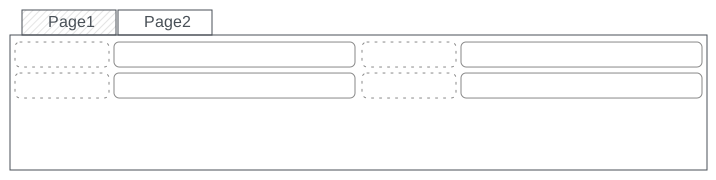 |
<form>
<notebook>
<page string="Page1">
...
</page>
<page string="Page2">
...
</page>
</notebook>
</form>
|
newline: start new group rows
The newline element is used within group
elements to end the current row early and immediately switch to a new row, without filling any
remaining column beforehand.
<form>
<group>
...
<newline/>
...
</group>
</form>
Possible structure and representation of its rendering
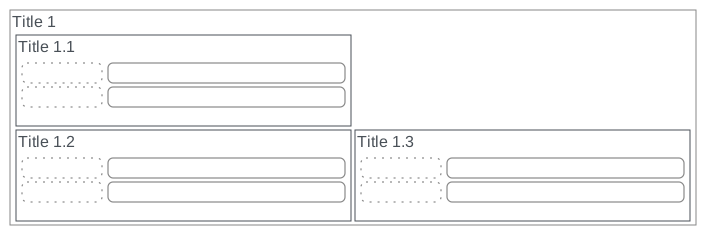 |
<form>
<group string="Title 1">
<group string="Title 1.1">...</group>
<newline/>
<group string="Title 1.2">...</group>
<group string="Title 1.3">...</group>
</group>
</form>
|
separator: add horizontal spacing
The separator element adds vertical spacing between elements within a group.
<form>
...
<separator/>
...
</form>
The <separator> element can have the following attributes:
- string
The title as a section title.
- Requirement
Optional
- Type
str- Default
''
Possible structure and representation of its rendering
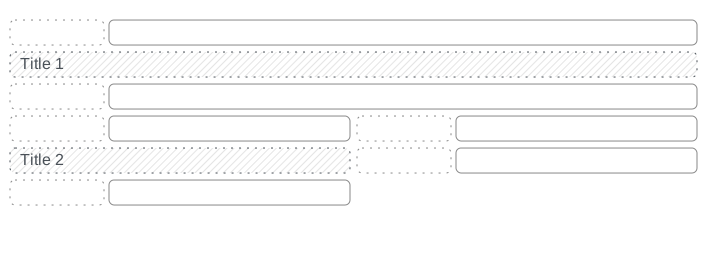 |
<form>
<group>
<FIELD/>
<separator string="Title 1"/>
<FIELD/>
<group>
<FIELD/>
<separator string="Title 2"/>
<FIELD/>
</group>
<group>
<FIELD/>
<FIELD/>
</group>
</group>
</form>
|
Tip
The separator element can be used to achieve visual separation between elements within the same
inner group element while keeping them horizontally aligned.
Buttons container
A button elements container can be created with a
div element with the class button_box.
<form>
<div name="button_box">
<BUTTONS/>
</div>
<form>
Possible structure and representation of its rendering
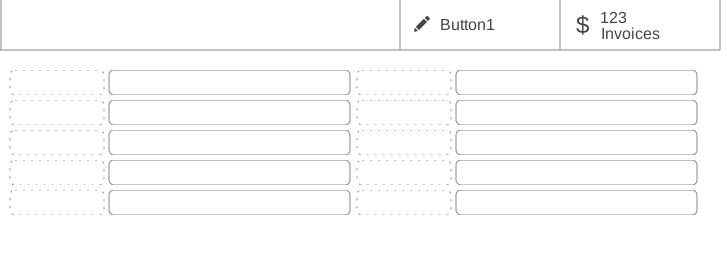 |
<form>
<div name="button_box">
<button type="edit" name="edit" icon="fa-edit" string="Button1"/>
<button type="object" name="my_action" icon="fa-dollar">
<field name="total_inv" widget="statinfo" string="Invoices"/>
</button>
</div>
<form>
|
Title container
A title field element container can be created with
a div element with the class oe_title.
<form>
<sheet>
<div class="oe_title">
<h1><FIELD/></h1>
</div>
</sheet>
<form>
Settings
Settings views are a customization of the form view. They are used to display settings in a centralized place. They differ from generic form views in that they have a search bar and a sidebar.
Example
<app string="CRM" name="crm">
<setting type="header" string="Foo">
<field name="foo" title="Foo?."/>
<button name="nameAction" type="object" string="Button"/>
</setting>
<block title="Title of group Bar">
<setting help="this is bar" documentation="/applications/technical/web/settings/this_is_a_test.html">
<field name="bar"/>
</setting>
<setting string="This is Big BAR" company_specific="1">
<field name="bar"/>
</setting>
</block>
<block title="Title of group Foo">
<setting string="Personalize setting" help="this is full personalize setting">
<div>This is a different setting</div>
</setting>
</block>
</app>
Components
Settings views accept the field, label and button elements of form views, as well as three additional children elements: app, block, and setting.
Placeholders are denoted in all caps.
app: declare the application
The app element is used to declare the application on the settings view. It creates an entry with
the logo of the application on the sidebar of the view. It also acts as delimiter when searching.
<form>
<app string="NAME" name="TECHNICAL_NAME">
...
</app>
</form>
The app element can have the following attributes:
- string
The name of the application.
- Requirement
Mandatory
- Type
- name
The technical name of the application (the name of the module).
- Requirement
Mandatory
- Type
- logo
The relative path to the logo.
- Requirement
Optional
- Type
- Default
A path computed with the
nameattribute:/name/static/description/icon.png
- groups
The comma-separated list of user groups to whom the element is displayed. Users who do not belong to at least one of these groups are unable to see the element. Groups can be prefixed with the negative
!operator to exclude them.Example
<field name="FIELD_NAME" groups="base.group_no_one,!base.group_multi_company"/>
- Requirement
Optional
- Type
- Default
''
- invisible
Whether the element is visible (
False) or hidden (True), as a Python expression that evaluates to a bool.Note
There are two uses for the
invisibleattribute:Usability: to avoid overloading the view and to make it easier for the user to read, depending on the content.
Technical: a field must be present (invisible is enough) in the view to be used in a Python expression.
Example
<field name="fname_b" invisible="fname_c != 3 and fname_a == parent.fname_d"/> <group invisible="fname_c != 4"> <field name="fname_c"/> <field name="fname_d"/> <group>
- Requirement
Optional
- Type
- Default
False
block: declare a group of settings
The block element is used to declare a group of settings. This group can have a title and a
description.
<form>
<app string="NAME" name="TECHNICAL_NAME">
...
<block title="TITLE">
...
</block>
...
</app>
</form>
The block element can have the following attributes:
- title
The title of the block of settings. One can search on its value.
- Requirement
Optional
- Type
- Default
''
- help
The description of the block of settings. One can search on its value.
- Requirement
Optional
- Type
- Default
''
- groups
The comma-separated list of user groups to whom the element is displayed. Users who do not belong to at least one of these groups are unable to see the element. Groups can be prefixed with the negative
!operator to exclude them.Example
<field name="FIELD_NAME" groups="base.group_no_one,!base.group_multi_company"/>
- Requirement
Optional
- Type
- Default
''
- invisible
Whether the element is visible (
False) or hidden (True), as a Python expression that evaluates to a bool.Note
There are two uses for the
invisibleattribute:Usability: to avoid overloading the view and to make it easier for the user to read, depending on the content.
Technical: a field must be present (invisible is enough) in the view to be used in a Python expression.
Example
<field name="fname_b" invisible="fname_c != 3 and fname_a == parent.fname_d"/> <group invisible="fname_c != 4"> <field name="fname_c"/> <field name="fname_d"/> <group>
- Requirement
Optional
- Type
- Default
False
setting: declare the setting
The setting element is used to declare the setting itself.
The first field element in the setting is used as
the main field. It is placed on the left panel if it is a boolean field, and on the top of the right
panel otherwise. The field is also used to create the setting label if a string attribute is not
defined.
The setting element can also contain additional elements (e.g., HTML). All of those elements are
rendered in the right panel.
<form>
<app string="NAME" name="TECHNICAL_NAME">
<block title="TITLE">
...
<setting string="SETTING_NAME">
...
<field name="FIELD_NAME"/>
...
</setting>
...
</block>
</app>
</form>
The <setting> element can have the following attributes:
- type
By default, a setting is visually separated on two panels (left and right), and is used to edit a given field. By defining
type="header", a special kind of setting is rendered instead. This setting is used to modify the scope of the other settings. For example, on the Website application, this setting is used to indicate to which website the other settings apply. The header setting is visually represented as a banner on top of the screen.- Requirement
Optional
- Type
- Default
''
- string
The text used as the label of the setting.
- Requirement
Optional
- Type
- Default
The first field’s label
- title
The text used as a tooltip.
- Requirement
Optional
- Type
- Default
''
- help
The description of the setting. This text is displayed just below the setting label (with the class
text-muted).- Requirement
Optional
- Type
- Default
''
- company_dependent
Whether the setting is company-specific. If set, an icon is displayed next to the setting label.
It accepts only the value
'1'.- Requirement
Optional
- Type
- Default
''
- documentation
The path to the documentation on the setting. If set, a clickable icon is displayed next to the setting label. The path can be both an absolute or a relative path. In the latter case, it is relative to
https://www.odoo.com/documentation/<version>.- Requirement
Optional
- Type
path_- Default
''
- groups
The comma-separated list of user groups to whom the element is displayed. Users who do not belong to at least one of these groups are unable to see the element. Groups can be prefixed with the negative
!operator to exclude them.Example
<field name="FIELD_NAME" groups="base.group_no_one,!base.group_multi_company"/>
- Requirement
Optional
- Type
- Default
''
- invisible
Whether the element is visible (
False) or hidden (True), as a Python expression that evaluates to a bool.Note
There are two uses for the
invisibleattribute:Usability: to avoid overloading the view and to make it easier for the user to read, depending on the content.
Technical: a field must be present (invisible is enough) in the view to be used in a Python expression.
Example
<field name="fname_b" invisible="fname_c != 3 and fname_a == parent.fname_d"/> <group invisible="fname_c != 4"> <field name="fname_c"/> <field name="fname_d"/> <group>
- Requirement
Optional
- Type
- Default
False
List
The root element of list views is list (the previous name was tree).
Possible structure and representation of its rendering
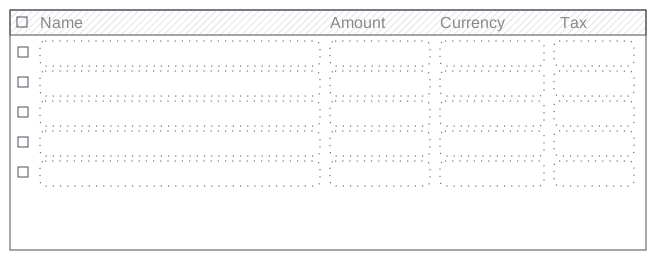 |
<list>
...
</list>
|
Root attributes
Optional attributes can be added to the root element list to customize the view.
- string
The view title. It is displayed only if you open an action that has no name and whose target is
new(opening a dialog).- Requirement
Optional
- Type
- Default
''
- create
Disable/enable record creation on the view.
- Requirement
Optional
- Type
- Default
True
- edit
Disable/enable record edition on the view.
- Requirement
Optional
- Type
- Default
True
- delete
Disable/enable record deletion on the view through the Action dropdown.
- Requirement
Optional
- Type
- Default
True
- import
Disable/enable record import from data on the view.
- Requirement
Optional
- Type
- Default
True
- export_xlsx
Disable/enable record export to data on the view.
- Requirement
Optional
- Type
- Default
True
- editable
Make the view’s records editable in-place, and allow creating new records from a row of the list. It can have two different values:
- top
New records are created from the top of the list.
- bottom
New records are created from the bottom of the list.
The architecture for the inline form view is derived from the list view. Most attributes valid on a form view’s fields and buttons are thus accepted by list views, although they may not have any meaning if the list view is non-editable.
Important
This behavior is disabled if the
editattribute is set toFalse.- Requirement
Optional
- Type
- Default
''
- multi_edit
Activate the multi-editing feature that allows updating a field to the same value for multiple records at once.
It accepts only the value
'1'.- Requirement
Optional
- Type
- Default
''
- open_form_view
Display a button at the end of each row to open the record in a form view.
It has no effect if the view is non-editable.
- Requirement
Optional
- Type
- Default
False
- default_group_by
The name of the field on which the records should be grouped by default if no grouping is specified via the action or the current search.
- Requirement
Optional
- Type
- Default
''
- default_order
A comma-separated list of fields names that overrides the ordering defined on the model through the
_orderattribute.To inverse the sorting order of a field, postfix it with
desc, separated by a space.Example
<list default_order="sequence,name desc"> ... </list>
- Requirement
Optional
- Type
- Default
''
- decoration-<style>
The style that should be applied to matching records’ rows, as a Python expression that evaluates to a bool.
<style>must be replaced by one ofbf(bold),it(italic),info,warning,danger,muted,primary, andsuccess.Example
<list decoration-danger="field_qty > field_limit"> ... </list>
- Requirement
Optional
- Type
- Default
False
- limit
The default size of a page. It must be strictly positive.
- Requirement
Optional
- Type
- Default
80for list views,40for X2many lists in form views
- groups_limit
The default number of groups on a page when the list view is grouped. It must be strictly positive.
- Requirement
Optional
- Type
- Default
80for list views,40for X2many lists in form views
- expand
Whether the first level of groups should be opened by default when the list view is grouped.
Warning
It may be slow, depending on the number of groups.
- Requirement
Optional
- Type
- Default
False
- sample
Whether the view should be populated with a set of sample records if none are found for the current model.
These fake records have heuristics for certain field names/models. For example, a field
display_nameon the modelres.userswill be populated with sample people names, while anemailfield will be in the form[email protected].The user is unable to interact with these data, and they will be discarded as soon as an action is performed (record created, column added, etc.).
- Requirement
Optional
- Type
- Default
False
Components
List views accept the following children elements: field, button, groupby, header, control, and create.
Placeholders are denoted in all caps.
field: display field values
The field element renders (and allows editing of, possibly) a single field of all current records
as a column.
Using the same field multiple times in a list view is not supported
<list>
<field name="FIELD_NAME"/>
</list>
The field element can have the following attributes:
- name
The name of the field to render.
- Requirement
Mandatory
- Type
- widget
The widget used to represent the field. The selected widget can change the way the field is rendered and/or the way it can be edited. It refers to a Javascript implementation (an Owl component) registered to the
fieldsregistry.- Requirement
Optional
- Type
- string
The label of the field.
- Requirement
Optional
- Type
- Default
The
stringattribute of the model’s field
- optional
Make the visibility of the field optional. The field’s column can be hidden or shown through a button on the view’s header.
It can have two different values:
- show
The field is shown by default.
- hide
The field is hidden by default.
Example
<field name="fname_a" optional="show"/> <field name="fname_b" optional="hide"/>
- Requirement
Optional
- Type
- readonly
Whether the field can be modified by the user (
False) or is read-only (True), as a Python expression that evaluates to a bool.Example
<field name="fname_a" readonly="True"/> <field name="fname_b" readonly="name_a in [fname_b, parent.fname_d]"/>
- Requirement
Optional
- Type
- Default
False
- required
Whether the field can be left empty (
False) or must be set (True), as a Python expression that evaluates to a bool.Example
<field name="fname_a" required="True"/> <field name="fname_b" required="fname_c != 3"/>
- Requirement
Optional
- Type
- Default
False
- invisible
Whether the element is visible (
False) or hidden (True), as a Python expression that evaluates to a bool.Note
There are two uses for the
invisibleattribute:Usability: to avoid overloading the view and to make it easier for the user to read, depending on the content.
Technical: a field must be present (invisible is enough) in the view to be used in a Python expression.
Example
<field name="fname_b" invisible="fname_c != 3 and fname_a == parent.fname_d"/> <group invisible="fname_c != 4"> <field name="fname_c"/> <field name="fname_d"/> <group>
- Requirement
Optional
- Type
- Default
False
- column_invisible
Whether the column is visible (
False) or hidden (True), as a Python expression that evaluates to a bool.Unlike
invisible, it affects the entire column, and is evaluated without the subtree values.Example
<field name="product_is_late" column_invisible="parent.has_late_products == False"/> <button type="object" name="action_confirm" column_invisible="context.get('hide_confirm')"/>
- Requirement
Optional
- Type
- Default
False
- groups
The comma-separated list of user groups to whom the element is displayed. Users who do not belong to at least one of these groups are unable to see the element. Groups can be prefixed with the negative
!operator to exclude them.Example
<field name="FIELD_NAME" groups="base.group_no_one,!base.group_multi_company"/>
- Requirement
Optional
- Type
- Default
''
- decoration-<style>
The style that should be applied to matching records’ field, as a Python expression that evaluates to a bool.
<style>must be replaced by one ofbf(bold),it(italic),info,warning,danger,muted,primary, andsuccess.Example
<field name="name" decoration-bf="1"/> <field name="quantity" decoration-info="state == 'draft'"/>
- Requirement
Optional
- Type
- Default
False
- sum, avg
The aggregate to display at the bottom of the column. The aggregation is computed on only records that are currently displayed. The aggregation operation must match the corresponding field’s
aggregator.Example
<field name="sent" sum="Total" /> <field name="clicks_ratio" avg="Average"/>
- Requirement
Optional
- Type
- Default
''
- width
The list view always tries to optimize the available space among columns. For some field types, this is done by enforcing a width, depending on the field type. For instance, we know exactly the number of pixels required to display a date, so we can ensure that a column for a date field doesn’t take more space than what is strictly necessary, thus leaving the extra space for the other columns. However, the framework can’t guess the adequate width for every field types. For instance, char fields can be used to encode large values, or 3-letter country codes. In the latter case, one can set the width directly in the arch (e.g.
width="40px"). It represents the width (always in pixels) required to render the values inside the cells. The width of the column will then be the sum of the given value and the cells’ left and right paddings.- Requirement
Optional
- Type
- Default
''
- nolabel
Whether the field’s column header should remain empty. If set, the column will not be sortable.
It accepts only the value
'1'- Requirement
Optional
- Type
- Default
''
Note
When a list view is grouped, numeric fields are aggregated and displayed for each group. Also, if there are too many records in a group, a pager appears on the right of the group row. For this reason, it is a bad practice to have a numeric field in the last column when the list view is in a situation where it can be grouped. However, it does not pose a problem for X2many fields in a form view, as they cannot be grouped.
Possible structure and representation of its rendering
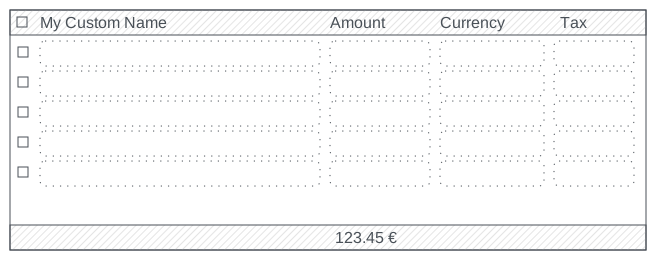 |
<list>
<field name="name" string="My Custom Name"/>
<field name="amount" sum="Total"/>
<field name="currency_id"/>
<field name="tax_id"/>
</list>
|
button: display action buttons
<list>
<button type="object" name="ACTION" string="LABEL"/>
<button type="object" name="ACTION" icon="FONT_AWESOME"/>
</list>
The button element can have the following attributes:
- type
The type of the button indicating how it behaves. It can have two different values:
- object
Call a method on the view’s model. The button’s
nameis the method that is called with the current record ID and the currentcontext.
- action
Load and execute an
ir.actionsaction record. The button’snameis the XMLID of the action to load. Thecontextis extended with the view’s model (asactive_model) and with the current record (asactive_id).
Example
<button type="object" name="action_create_new" string="Create document"/>
<button type="action" name="addon.action_create_view" string="Create and Edit"/>
- Requirement
Mandatory if the
specialattribute is not set- Type
- name
The method to call if the
typeisobject. The XMLID of the action to load if thetypeisaction, either in raw format or in%(XMLID)dformat.- Requirement
Optional
- Type
- Default
''
- string
The button’s text if there is no
icon, thealttext for the icon otherwise.Example
<button type="object" name="action_create_new" string="Create document"/>
- Requirement
Optional
- Type
- Default
''
- icon
The icon to use to display the button. See icons for the reference list.
Example
<button type="object" name="remove" icon="fa-trash"/>
- Requirement
Optional
- Type
- Default
''
- help
The tooltip message shown when hovering with the mouse cursor.
Example
<button type="object" name="remove" icon="fa-trash" help="Revoke"/>
- Requirement
Optional
- Type
- Default
''
- context
The context that is merged into the view’s context when performing the button’s call, as a Python expression that evaluates to a dict.
Example
<button name="button_confirm" type="object" context="{'BUSINESS_KEY': ANY}" string="LABEL"/>
- Requirement
Optional
- Type
- Default
{}
- groups
The comma-separated list of user groups to whom the element is displayed. Users who do not belong to at least one of these groups are unable to see the element. Groups can be prefixed with the negative
!operator to exclude them.Example
<field name="FIELD_NAME" groups="base.group_no_one,!base.group_multi_company"/>
- Requirement
Optional
- Type
- Default
''
- invisible
Whether the element is visible (
False) or hidden (True), as a Python expression that evaluates to a bool.Note
There are two uses for the
invisibleattribute:Usability: to avoid overloading the view and to make it easier for the user to read, depending on the content.
Technical: a field must be present (invisible is enough) in the view to be used in a Python expression.
Example
<field name="fname_b" invisible="fname_c != 3 and fname_a == parent.fname_d"/>
<group invisible="fname_c != 4">
    <field name="fname_c"/>
    <field name="fname_d"/>
<group>
- Requirement
Optional
- Type
- Default
False
- column_invisible
Whether the column is visible (
False) or hidden (True), as a Python expression that evaluates to a bool.Unlike
invisible, it affects the entire column, and is evaluated without the subtree values.Example
<field name="product_is_late" column_invisible="parent.has_late_products == False"/> <button type="object" name="action_confirm" column_invisible="context.get('hide_confirm')"/>
- Requirement
Optional
- Type
- Default
False
- class
The HTML class to set on the generated element.
The styling uses the Bootstrap framework and UI icons. Common Odoo classes include:
oe_inline: prevents the usual line break following fields, and limits their span;oe_left,oe_right: floats the element to the corresponding direction;oe_read_only,oe_edit_only: only displays the element in the corresponding form mode;oe_avatar: for image fields, displays images as an “avatar” (max 90x90 square);oe_stat_button: defines a particular rendering to dynamically display information while being clickable to target an action.
Example
<field name="fname" class="oe_inline oe_left oe_avatar"/>
Example
<button type="object" name="ACTION" class="oe_stat_button" icon="FONT_AWESOME" help="HELP">
   <div class="o_field_widget o_stat_info">
      <span class="o_stat_value"><FIELD/></span>
      <span class="o_stat_text">TEXT</span>
   </div>
</button>
- Requirement
Optional
- Type
- Default
''
Possible structure and representation of its rendering
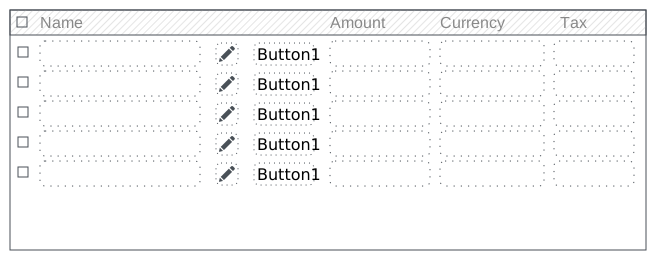 |
<list>
<field name="name"/>
<button type="edit" name="edit" icon="fa-edit" title="Edit"/>
<button type="object" name="my_method" string="Button1" column_invisible="context.get('hide_button')" invisible="amount > 3"/>
<field name="amount"/>
<field name="currency_id"/>
<field name="tax_id"/>
</list>
|
groupby: define group headers
The groupby element is used to define group headers with button elements when grouping records on
Many2one fields. It also accepts field elements, which can be used for modifiers. These fields
thus belong on the Many2one co-model. These extra fields are fetched in batch.
<list>
...
<groupby name="FIELD_NAME">
<BUTTONS/>
<FIELDS/>
</groupby>
</list>
The groupby element can have the following attributes:
- name
The name of the a
Many2onefield to use as header.A special button element with
type="edit"can be defined to open the Many2one field’s form view.- Requirement
Mandatory
- Type
Possible structure and representation of its rendering
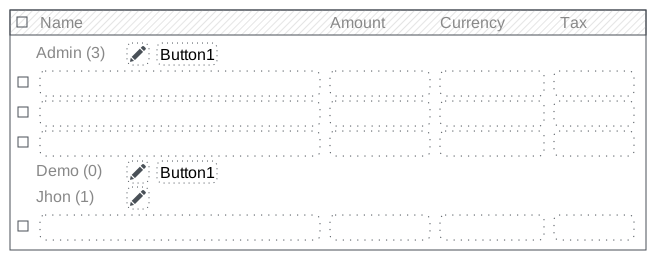 |
<list>
<field name="name"/>
<field name="amount"/>
<field name="currency"/>
<field name="tax_id"/>
<groupby name="partner_id">
<button type="edit" name="edit" icon="fa-edit" title="Edit"/>
<field name="email"/>
<button type="object" name="my_method" string="Button1" invisible="email == '[email protected]'"/>
</groupby>
</list>
|
Note
Fields inside the groupby element are used only to fetch and store the value, but they are
never displayed.
header: display workflow buttons
<list>
<header>
<BUTTONS/>
</header>
...
</list>
The header element accepts the following children elements:
- button
The
buttonelement allows defining buttons in the control panel. It is the same element as the button element in list views, but it accepts one more attribute when placed inside aheaderelement:- display
Make the button available at all time, without having to select records.
It accepts only the value
always.Example
<header> <button name="toDoAlways" type="object" string="Always displayed" display="always"/> <button name="toDoSelection" type="object" string="Displayed if selection"/> </header>
- Requirement
Optional
- Type
- Default
''
Possible structure and representation of its rendering
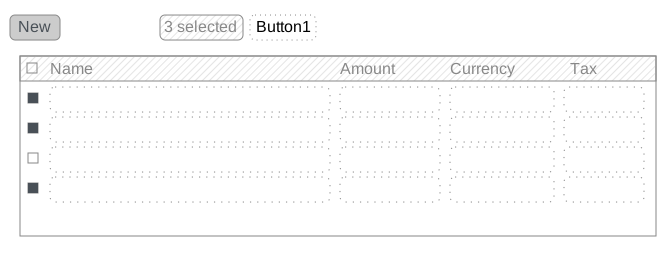 |
<list>
<header>
<button type="object" name="to_draft" string="Button1" invisible="context.get('hide_button')"/>
</header>
<field name="name"/>
<field name="amount"/>
<field name="currency"/>
<field name="tax_id"/>
</list>
|
control & create: add inline create buttons
The control element defines a control row that accepts create buttons. Each create button is
defined through a create element.
<list>
<control>
<create string="LABEL"/>
<BUTTONS/>
</control>
...
</list>
The control element takes no attributes.
The create element can have the following attributes:
- string
The button’s text.
- Requirement
Mandatory
- Type
- context
The context that is merged into the view’s context when performing the button’s call, as a Python expression that evaluates to a dict.
- Requirement
Optional
- Type
- Default
{}
Possible structure and representation of its rendering
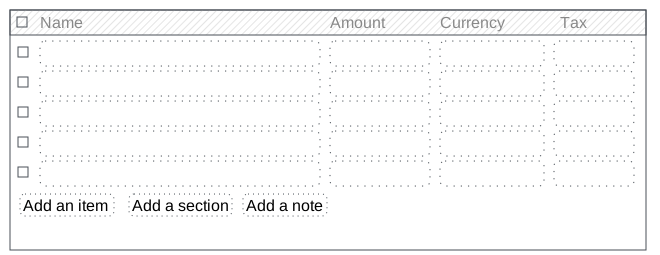 |
<list>
<field name="name"/>
<field name="amount"/>
<field name="currency"/>
<field name="tax_id"/>
<control>
<create string="Add a item"/>
<create string="Add a section" context="{'default_type': 'section'}"/>
<create string="Add a note" context="{'default_type': 'note'}"/>
</control>
</list>
|
Note
Using the control element makes sense only if the list view is inside a
One2many or Many2many field. If any create element
is defined, it overwrites the default add a line button.
Search
Search views are different from other view types in that they are not used to display content. Although they apply to a specific model, they are used to filter another view’s content (usually aggregated views; e.g., List and Graph).
The root element of search views is search.
It takes no attributes.
Possible structure and representation of its rendering
 |
<search>
...
</search>
|
Components
Search views accept the following children elements: field, filter, separator, group, and searchpanel.
Placeholders are denoted in all caps.
field: filter based on field values
The field element defines domains or contexts with user-provided values. When search domains are
generated, field domains are joined with each other and with filters using the AND operator.
<search>
<field name="FIELD_NAME"/>
</search>
The field element can have the following attributes:
- name
The name of the field to filter on.
- Requirement
Mandatory
- Type
- string
The label of the field.
- Requirement
Optional
- Type
- Default
The
stringattribute of the model’s field
- operator
By default, fields generate domains of the form
[(name, operator, value)], wherenameis the field’s name andvalueis the value provided by the user, possibly filtered or transformed (e.g., a user is expected to provide the label of a selection field’s value, not the value itself).The
operatorattribute allows overriding the default operator, which depends on the field’s type (e.g.,=for float fields, butilikefor char fields andchild_offor many2one).- Requirement
Optional
- Type
- Default
=
- filter_domain
The domain to use as the field’s search domain, as a Python expression that evaluates to a domain.
It can use the
selfvariable to inject the provided value in the custom domain. It can be used to generate significantly more flexible domains than with theoperatorattribute alone (e.g., search on multiple fields at once).If both the
operatorandfilter_domainattributes are provided,filter_domaintakes precedence.- Requirement
Optional
- Type
- Default
[]
- context
The context to merge into the context of the view that the search view is targeting, as a Python expression that evaluates to a dict.
It can contain user-provided values, which are available under the
selfvariable.- Requirement
Optional
- Type
- Default
{}
- domain
The filters to apply to the completion results for fields that allow for auto-completion (e.g.,
Many2one).- Requirement
Optional
- Type
- Default
[]
- groups
The comma-separated list of user groups to whom the element is displayed. Users who do not belong to at least one of these groups are unable to see the element. Groups can be prefixed with the negative
!operator to exclude them.Example
<field name="FIELD_NAME" groups="base.group_no_one,!base.group_multi_company"/>
- Requirement
Optional
- Type
- Default
''
- invisible
Whether the element is visible (
False) or hidden (True), as a Python expression that evaluates to a bool.Note
There are two uses for the
invisibleattribute:Usability: to avoid overloading the view and to make it easier for the user to read, depending on the content.
Technical: a field must be present (invisible is enough) in the view to be used in a Python expression.
Example
<field name="fname_b" invisible="fname_c != 3 and fname_a == parent.fname_d"/>
<group invisible="fname_c != 4">
    <field name="fname_c"/>
    <field name="fname_d"/>
<group>
- Requirement
Optional
- Type
- Default
False
Possible structure and representation of its rendering
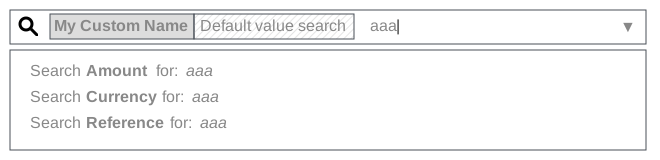 |
<search>
<field name="name" string="My Custom Name"/>
<field name="amount"/>
<field name="currency_id"/>
<field name="ref" filter_domain="[('name', 'like', self)]"/>
</search>
|
filter: create pre-defined filters
The filter element is used to create pre-defined filters that can be toggled in the search view.
It allows adding data to the search context the context passed to the data view for
searching/filtering, or appending new sections to the search filter.
<search>
<filter string="LABEL" domain="DOMAIN"/>
</search>
The filter element can have the following attributes:
- name
The technical name of the filter. It can be used to enable it by default or as an inheritance hook.
- Requirement
Mandatory
- Type
- string
The label of the filter.
- Requirement
Mandatory
- Type
- help
The tooltip displayed when hovering the filter.
- Requirement
Optional
- Type
- Default
''
- domain
The domain to append to the action’s domain as part of the search domain.
- Requirement
Optional
- Type
- Default
[]
- date
The name of the
dateordatetimefield to filter on.When used, this attribute creates a set of filters available in a sub-menu of the Filters menu. The available filters are time-dependent but not dynamic in the sense that their domains are evaluated at the time of the control panel instantiation.
Example
<filter string="Creation Date" name="filter_create_date" date="create_date"/>
By default, these filters contain a dropdown with different sub-filters that allow you to filter based on months, quarters and years. Additionally, you can create custom sub-filters that allow filtering using domains. These custom filters must have the following attributes:
name,stringanddomain.Example
<filter string="Creation Date" name="filter_create_date" date="create_date"> <filter name="create_date_last_30_days" string="Last 30 Days" domain="[('create_date', '>', datetime.datetime.combine(context_today() - relativedelta(days=30), datetime.time(23, 59, 59)).to_utc())]"/> </filter>
Note that all custom filters defined this way are mutually exclusive with each other and with the other sub-filters.
- Requirement
Optional
- Type
- Default
''
- start_month
The earliest month that will show up in the dropdown of a date filter, as an offset relative to the current month.
Example
<filter string="Creation Date" name="filter_create_date" date="create_date" start_month="-3"/>
If the current month is February, the earliest month selectable in the dropdown will be November.
- Requirement
Optional
- Type
- Default
-2- Scope
Filters with a non-empty
dateattribute
- end_month
The latest month that will show up in the dropdown of a date filter, as an offset relative to the current month.
Example
<filter string="Creation Date" name="filter_create_date" date="create_date" end_month="2"/>
If the current month is February, the latest month selectable in the dropdown will be March.
- Requirement
Optional
- Type
- Default
0- Scope
Filters with a non-empty
dateattribute
- start_year
The earliest year that will show up in the dropdown of a date filter, as an offset relative to the current year.
Example
<filter string="Creation Date" name="filter_create_date" date="create_date" start_year="-3"/>
If the current year is 2024, the earliest year selectable in the dropdown will be 2021.
- Requirement
Optional
- Type
- Default
-2- Scope
Filters with a non-empty
dateattribute
- end_year
The latest year that will show up in the dropdown of a date filter, as an offset relative to the current year.
Example
<filter string="Creation Date" name="filter_create_date" date="create_date" end_year="2"/>
If the current year is 2024, the latest year selectable in the dropdown will be 2025.
- Requirement
Optional
- Type
- Default
0- Scope
Filters with a non-empty
dateattribute
- default_period
The default period of the time-based filter (with a
dateattribute). It must be one of, or a comma-separated list of valid filter ids.Valid filter ids include the following:
first_quarter,second_quarter,third_quarterandfourth_quarter.One of
month,month-xandmonth+x, wherexis a non-zero integer value betweenstart_monthandend_month.One of
year,year-xandyear+x, wherexis a non-zero integer value betweenstart_yearandend_year.The
nameof any custom filter defined within the filter, prepended withcustom_.
The filter must be in the default set of filters activated at the view initialization.
Example
<filter string="Creation Date" name="filter_create_date" date="create_date" default_period="year,month-1"/>
Example
<filter string="Creation Date" name="filter_create_date" date="create_date" default_period="custom_create_date_last_30_days"> <filter name="create_date_last_30_days" string="Last 30 Days" domain="[('create_date', '>', datetime.datetime.combine(context_today() - relativedelta(days=30), datetime.time(23, 59, 59)).to_utc())]"/> </filter>
- Requirement
Optional
- Type
- Default
month, or the closest value to the current month if unavailable- Scope
Filters with a non-empty
dateattribute
- invisible
Whether the element is visible (
False) or hidden (True), as a Python expression that evaluates to a bool.Note
There are two uses for the
invisibleattribute:Usability: to avoid overloading the view and to make it easier for the user to read, depending on the content.
Technical: a field must be present (invisible is enough) in the view to be used in a Python expression.
Example
<field name="fname_b" invisible="fname_c != 3 and fname_a == parent.fname_d"/>
<group invisible="fname_c != 4">
    <field name="fname_c"/>
    <field name="fname_d"/>
<group>
- Requirement
Optional
- Type
- Default
False
- groups
The comma-separated list of user groups to whom the element is displayed. Users who do not belong to at least one of these groups are unable to see the element. Groups can be prefixed with the negative
!operator to exclude them.Example
<field name="FIELD_NAME" groups="base.group_no_one,!base.group_multi_company"/>
- Requirement
Optional
- Type
- Default
''
- context
The context merged into the action’s domain to generate the search domain
The context key
group_byset with a field as value can be used to define a group available in the Group By menu. When the field is of typedateordatetime, the filter generates a submenu of the Group By menu with the following interval options available: Year, Quarter, Month, Week, and Day. When the filter is in the default set of filters activated at the view initialization, the records are grouped by month by default. This can be changed by using the syntaxdate_field:interval.Example
<filter string="Category" name="groupby_category" context="{'group_by': 'category_id'}"/> <filter string="Creation Date" name="groupby_create_date" context="{'group_by': 'create_date:week'}"/>
Note
The results of
read_groupsgrouped on a field may be influenced by itsgroup_expandattribute, allowing to display empty groups when needed. For more information, please refer toField.- Requirement
Optional
- Type
- Default
{}
Caution
Sequences of filters (without non-filters elements separating them) are treated as inclusively
composited: they will be composed with OR rather than the usual AND.
Example
<filter domain="[('state', '=', 'draft')]"/>
<filter domain="[('state', '=', 'done')]"/>
Records whose state field is draft or done are shown.
Example
<filter domain="[('state', '=', 'draft')]"/>
<separator/>
<filter domain="[('delay', '<', 15)]"/>
Records whose state field is draft and delay field is below 15.
Possible structure and representation of its rendering
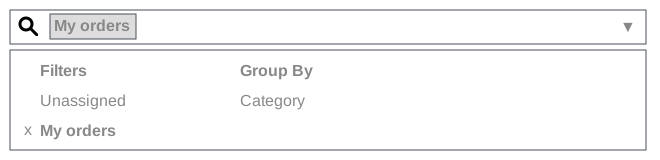 |
<search>
<filter string="My Custom Name" domain="[('name', 'ilike', 'AAA')]"/>
<filter string="My orders" domain="[('user_id', '=', uid)]"/>
<filter string="Category" context="{'group_by': 'category_id'}"/>
</search>
|
separator: separate groups of filters
The separator element is used to separates groups of filters in simple search views. For more complex search views,
the group element is recommended.
<search>
<FILTERS/>
<separator/>
<FILTERS/>
</search>
The separator element takes no attributes.
group: separate groups of filters
The group element is used to separate groups of filters in cluttered search views. In simpler search views, it
can be substituted for the separator element.
<search>
<group>
<FILTERS/>
</group>
</search>
The group element takes no attributes.
searchpanel: display search panels
The searchpanel element displays a search panel to the left of multi-records views. It allows for
quickly filtering data on the basis of given fields.
<search>
<searchpanel>
<FIELDS/>
</searchpanel>
</search>
The searchpanel element accepts only field children elements.
The field element used as a child element of a searchpanel element can have the following
attributes:
- name
The name of the field to filter on.
- Requirement
Mandatory
- Type
- string
The label of the field.
- Requirement
Optional
- Type
- Default
The
stringattribute of the model’s field
- select
The behavior and display of the field. It can have two different values:
- one
At most one value can be selected. Supported field types are
many2oneandselection.
- multi
Several values can be selected. Supported field types are
many2one,many2manyandselection.
- Requirement
Optional
- Type
- Default
one
- groups
The comma-separated list of user groups to whom the element is displayed. Users who do not belong to at least one of these groups are unable to see the element. Groups can be prefixed with the negative
!operator to exclude them.Example
<field name="FIELD_NAME" groups="base.group_no_one,!base.group_multi_company"/>
- Requirement
Optional
- Type
- Default
''
- icon
The icon of the field.
- Requirement
Optional
- Type
- Default
''
- color
The color of the field.
- Requirement
Optional
- Type
- Default
''
When the field element has the select=one attribute set, it can have the following additional
attributes:
- hierarchize
Whether child categories should appear under their parent category, or at the same hierarchy level.
- Requirement
Optional
- Type
- Default
True- Scope
Many2onefields
When the field element has the select=multi attribute set, it can have the following additional
attributes:
- enable_counters
Whether the record counters is computed and displayed if non-zero.
Tip
This attribute exists to avoid impacting performance. Another way to address performance issues is to override the
search_panel_select_rangeandsearch_panel_select_multi_rangemethods.- Requirement
Optional
- Type
- Default
False
- expand
Whether categories and filters with no records should be shown.
- Requirement
Optional
- Type
- Default
False
- limit
The maximal number of values to fetch for the field. If the limit is reached, no values are displayed on the search panel, and an error message is shown instead. If set to 0, all values are fetched.
- Requirement
Optional
- Type
- Default
200
- domain
The conditions that the records have to satisfy.
Example
<searchpanel> <field name="department_id"/> <field name="manager_id" select="multi" domain="[('department_id', '=', department_id)]"/> </searchpanel>
- Requirement
Optional
- Type
- Default
[]
- groupby
The name of the field name on which values should be grouped.
- Requirement
Optional
- Type
- Default
''- Scope
Many2oneandMany2manyfields
Search defaults
Search fields and filters can be configured through the action’s context using
search_default_name keys. For fields, the value must be the value to set to the field. For
filters, it must be a boolean value or a number.
Example
With foo, a field, and bar, a filter, the following action context will search foo on
acro and enable bar by default:
{
'search_default_foo': 'acro',
'search_default_bar': 1
}
A numeric value (between 1 and 99) can be used to define the order of default groupby filters.
Example
With foo and bar, two groupby filters, the following action context will first enable
bar, then foo.
{
'search_default_foo': 2,
'search_default_bar': 1
}
Kanban
Kanban views are used as a kanban board visualisation: they display records as “cards”, halfway between a list and a form view.
Records may be grouped in columns for use in workflow visualisation or manipulation (e.g., tasks or work-progress management), or ungrouped (used simply to visualize records).
The root element of Kanban views is kanban.
Possible structure and representation of its rendering
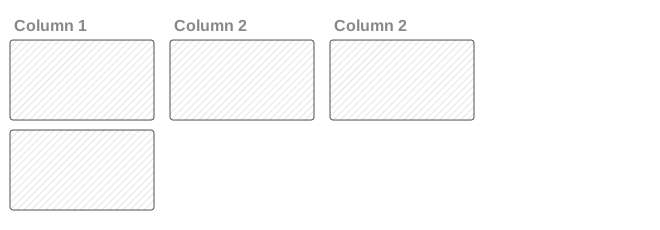 |
<kanban>
...
</kanban>
|
Note
Kanban views load and display a maximum of ten columns. Any column after that is closed but can still be opened by the user.
Root attributes
Optional attributes can be added to the root element kanban to customize the view.
- string
The view title. It is displayed only if you open an action that has no name and whose target is
new(opening a dialog).- Requirement
Optional
- Type
- Default
''
- create
Disable/enable record creation on the view.
- Requirement
Optional
- Type
- Default
True
- edit
Disable/enable record edition on the view.
- Requirement
Optional
- Type
- Default
True
- delete
Disable/enable record deletion on the view through the Action dropdown.
- Requirement
Optional
- Type
- Default
True
- default_group_by
The name of the field on which the records should be grouped by default if no grouping is specified via the action or the current search.
- Requirement
Optional
- Type
- Default
''
- default_order
A comma-separated list of fields names that overrides the ordering defined on the model through the
_orderattribute.To inverse the sorting order of a field, postfix it with
desc, separated by a space.Example
<list default_order="sequence,name desc">
    ...
</list>
- Requirement
Optional
- Type
- Default
''
- class
Add HTML classes to the root HTML element of the view.
- Requirement
Optional
- Type
- Default
''
- examples
The key in the
KanbanExamplesRegistryof the examples that can be browsed when creating a new column in the grouped kanban view.- Requirement
Optional
- Type
- Default
''
- group_create
Whether the Add a new column bar is visible.
- Requirement
Optional
- Type
- Default
True
- group_delete
Whether columns can be deleted via the cog menu.
- Requirement
Optional
- Type
- Default
True
- group_edit
Whether columns can be edited via the cog menu.
- Requirement
Optional
- Type
- Default
True
- groups_draggable
Whether columns can be reordered.
- Requirement
Optional
- Type
- Default
True
- records_draggable
Whether records can be dragged when the kanban view is grouped.
- Requirement
Optional
- Type
- Default
True
- archivable
Whether records belonging to a column can be archived and unarchived when the
activefield is defined on the model.- Requirement
Optional
- Type
- Default
True
- quick_create
Whether it should be possible to create records without switching to the form view.
- Requirement
Optional
- Type
- Default
Truewhen the kanban view is grouped by many2one, selection, char, or boolean fields, otherwiseFalse
- quick_create_view
The reference of the form view to open when using the quick creation of records.
- Requirement
Optional
- Type
- Default
''
- on_create
The custom action to call when clicking on Create.
If set to
'quick_create', the quick creation of records is used instead. If the quick creation is disabled, the standard create action is called.- Requirement
Optional
- Type
- Default
''
- can_open
By default, clicking on a kanban card opens the corresponding record in a form view. This behavior can be disabled by setting the attribute
can_opentoFalse.- Requirement
Optional
- Type
- Default
True
- highlight_color
Name of the integer field used to color the left border of the kanban cards.
- Requirement
Optional
- Type
- sample
Whether the view should be populated with a set of sample records if none are found for the current model.
These fake records have heuristics for certain field names/models. For example, a field
display_nameon the modelres.userswill be populated with sample people names, while anemailfield will be in the form[email protected].The user is unable to interact with these data, and they will be discarded as soon as an action is performed (record created, column added, etc.).
- Requirement
Optional
- Type
- Default
False
Components
Kanban views accept the following children elements: templates, field, header, progressbar.
templates: define cards structure
The templates element is used to define the QWeb templates that structure
the kanban cards.
The definition of a card’s structure can be split into multiple templates for clarity, but at least
one root card template must be defined.
An additional template can be defined: menu. If defined, it is rendered inside a dropdown
that can be toggled with a vertical ellipsis (⋮) on the top right of the card.
The templates are written in JavaScript QWeb.
<kanban>
   <templates>
      <t t-name="card">
         <field name="name"/>
      </t>
   </templates>
</kanban>
Warning
These are QWeb templates, not Owl templates, meaning that
directives like t-on-click aren’t available.
Fields
Inside those templates, the field element allows to render a field. It can have the following
attributes:
- name
The name of the field to render.
- Requirement
Mandatory
- Type
- widget
The widget used to represent the field. The selected widget can change the way the field is rendered and/or the way it can be edited. It refers to a Javascript implementation (an Owl component) registered to the
fieldsregistry.- Requirement
Optional
- Type
By default, field nodes are replaced by a span containing their formatted value, unless the
widget attribute is specified, in which case their rendering and behavior depends on the
corresponding widget. The widget attribute can have different values including:
- handle
Allows reordering records with a drag and drop, using the corresponding field as order.
- kanban_color_picker
Allows editing a color (integer) field. Combined with the root attribute
highlight_color, allows editing the color of the cards.
See the Field section to discover various widgets and their options.
Rendering Context
Kanban templates being rendered with the QWeb engine, they have a rendering context, a set of variables available in the templates, containing useful information and tools. Here’re the available variables:
- record
An object with all the fields defined in the view. Each field has two attributes:
valueandraw_value. The former is formatted according to current user parameters, while the latter is the raw value (e.g. theidfor a many2one field). This object is useful for instance, for using field values insidet-ifconditions. For display purposes, we recommend using the<field>tag.Example
<kanban>
   <templates>
      <field name="is_company"/>
      <t t-name="card">
         <field name="name"/>
         <field t-if="!record.is_company.raw_value" name="parent_id">
      </t>
   </templates>
</kanban>
- widget
An object with 2 keys defining the available actions for the user:
editable: true if the user can edit records, false otherwise;deletable: true if the user can delete records, false otherwise.
This is useful to conditionally display elements requiring specific access rights.
Example
<kanban>
   <templates>
      <t t-name="card">
         <field name="name"/>
      </t>
      <t t-name="menu">
         <a t-if="widget.deletable" role="menuitem" type="delete" class="dropdown-item">Delete</a>
      </t>
   </templates>
</kanban>
- context
The current context propagated from either the action that opens the kanban view, or the one2many or many2many field that embeds the kanban view in a form view.
- read_only_mode
Indicates that the view is readonly.
- Type
- selection_mode
Whether the kanban view is opened when selecting a many2one or many2many field (in mobile environment).
- Type
- luxon
The luxon object, allowing to manipulate date and datetime field values.
- JSON
The Javascript JSON namespace object containing a
parsemethod allowing to parse json field values into Javascript Objects.
Widgets
The widget element allows to insert dynamically generated (in Javascript) html inside the cards. It
has a mandatory name attribute, referring to a Javascript implementation (an Owl component)
registered to the view_widgets registry.
See the Widget section to discover various widgets and their options.
Layouts
Several card layouts can be easily obtained using standard html elements and Bootstrap utility
classes. By default, the card is a flexbox
container
with column direction.
Example
<kanban>
   <templates>
      <t t-name="card">
         <field class="fw-bold fs-5" name="display_name"/>
         <field class="text-muted" name="parent_id"/>
         <field name="tag_ids" widget="many2many_tags"/>
      </t>
   </templates>
</kanban>
The footer html element is styled to stick to the bottom of the card, and is as a flexbox
container with row direction, allowing to easily display several fields on the same line.
Example
<kanban>
   <templates>
      <t t-name="card">
         <field class="fw-bold fs-5" name="display_name"/>
         <field class="text-muted" name="parent_id"/>
         <field name="tag_ids" widget="many2many_tags"/>
         <footer>
            <field name="priority" widget="priority"/> <!-- bottom left corner -->
            <field class="ms-auto" name="activity_ids" widget="kanban_activity"/> <!-- bottom right corner -->
         </footer>
      </t>
   </templates>
</kanban>
To display some content, like an image, on the side of the card, one can use aside and main html
elements, with the flex-row classname on the card. The main node is a flexbox container like the
card is when there’s no aside.
Example
<kanban>
   <templates>
      <t t-name="card" class="flex-row">
         <aside>
            <field name="avatar_128" widget="image" alt="Avatar"/>
         </aside>
         <main class="ms-2">
            <field class="fw-bold fs-5" name="display_name"/>
            <field class="text-muted" name="parent_id"/>
            <field name="tag_ids" widget="many2many_tags"/>
            <footer>
               <field name="priority" widget="priority"/>
               <field class="ms-auto" name="activity_ids" widget="kanban_activity"/>
            </footer>
         </main>
      </t>
   </templates>
</kanban>
Tip
The classname o_kanban_aside_full set on the aside element removes the padding so that the
image spreads to the borders of the card.
field: declare more fields to fetch
The field element can also be used outside the kanban templates. In that case, it allows to declare fields that are
not displayed in the card, but still need to be fetched, for instance because their value is used
in a t-if condition.
Example
<kanban>
   <templates>
      <field name="is_company"/>
      <t t-name="card">
         <field name="name"/>
         <field t-if="!record.is_company.raw_value" name="parent_id">
      </t>
   </templates>
</kanban>
progressbar: show progress bars on top of columns
The progressbar element is used to define a progress bar to display on top of kanban columns in
grouped kanban views.
<kanban>
    <progressbar field="FIELD_NAME"/>
    ...
</kanban>
The progressbar element can have the following attributes:
- field
The name of the field on which the progress bar’s sub-groups are based.
- Requirement
Mandatory
- Type
- colors
The mapping of the progress bar’s field values to the color values
muted,success,warning, anddanger.- Requirement
Mandatory
- Type
- sum_field
The name of the field to use in a sum displayed next to the progress bar. If not set, the total number of records is displayed instead.
- Requirement
Optional
- Type
- Default
''
Possible structure and representation of its rendering
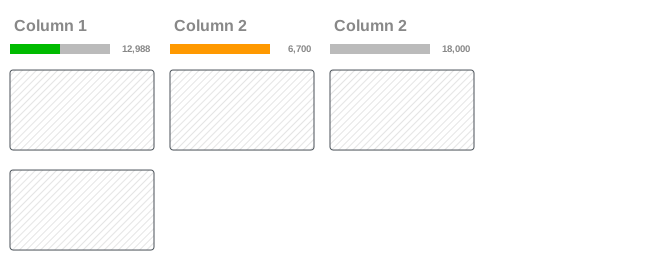 |
<kanban>
    <progressbar field="activity_state"
                 colors="{'planned': 'success', 'today': 'warning', 'overdue': 'danger'}"
                 sum_field="expected_revenue"/>
    <templates>
        ...
    </templates>
</kanban>
|
QWeb
QWeb views are standard QWeb Templates templates inside a view’s
arch. They don’t have a specific root element. Because QWeb views don’t
have a specific root element, their type must be specified explicitly (it can
not be inferred from the root element of the arch field).
QWeb views have two use cases:
they can be used as frontend templates, in which case template should be used as a shortcut.
they can be used as actual qweb views (opened inside an action), in which case they should be defined as regular view with an explicit
type(it can not be inferred) and a model.
The main additions of qweb-as-view to the basic qweb-as-template are:
qweb-as-view has a special case for a
<nav>element bearing the CSS classo_qweb_cp_buttons: its contents should be buttons and will be extracted and moved to the control panel’s button area, the<nav>itself will be removed, this is a work-around to control panel views not existing yetqweb-as-view rendering adds several items to the standard qweb rendering context:
modelthe model to which the qweb view is bound
domainthe domain provided by the search view
contextthe context provided by the search view
recordsa lazy proxy to
model.search(domain), this can be used if you just want to iterate the records and not perform more complex operations (e.g. grouping)
qweb-as-view also provides additional rendering hooks:
_qweb_prepare_context(view_id, domain)prepares the rendering context specific to qweb-as-viewqweb_render_view(view_id, domain)is the method called by the client and will call the context-preparation methods and ultimatelyenv['ir.qweb'].render().
Graph
The graph view is used to visualize aggregations over a number of records or
record groups. Its root element is <graph> which can take the following
attributes:
type(optional)one of
bar(default),pieandline, the type of graph to usestacked(optional)only used for
barcharts. Set to0to prevent the bars within a group to be stacked initially.disable_linking(optional)set to
1to prevent from redirecting clicks on graph to list vieworder(optional)if set, x-axis values will be sorted by default according their measure with respect to the given order (
ascordesc). Only used forbarandpiecharts.string(optional)string displayed in the breadcrumbs when redirecting to list view.
- sample
Whether the view should be populated with a set of sample records if none are found for the current model.
These fake records have heuristics for certain field names/models. For example, a field
display_nameon the modelres.userswill be populated with sample people names, while anemailfield will be in the form[email protected].The user is unable to interact with these data, and they will be discarded as soon as an action is performed (record created, column added, etc.).
- Requirement
Optional
- Type
- Default
False
The only allowed element within a graph view is field which can have the
following attributes:
name(mandatory)the name of a field to use in the view. If used for grouping (rather than aggregating)
invisible(optional)if true, the field will not appear either in the active measures nor in the selectable measures.
type(optional)if set to
measure, the field will be used as an aggregated value within a group instead of a grouping criteria. It only works for the last field with that attribute but it is useful for other fields with string attribute (see below).interval(optional)on date and datetime fields, groups by the specified interval (
day,week,month,quarteroryear) instead of grouping on the specific datetime (fixed second resolution) or date (fixed day resolution). Default ismonth.string(optional)only used for field with
type="measure". The name that will be used to display the field in the graph view, overrides the default python String attribute of the field.
The measures are automatically generated from the model fields; only the aggregatable fields are used. Those measures are also alphabetically sorted on the string of the field.
Warning
graph view aggregations are performed on database content, non-stored function fields can not be used in graph views
In Graph views, a field can have a widget attribute to dictate its format.
The widget should be a field formatter, of which the most interesting are
float_time, and monetary.
<field name="working_hours_close" widget="float_time"/>
Pivot
The pivot view is used to visualize aggregations as a pivot table. Its root
element is <pivot> which can take the following attributes:
disable_linking(optional)Set to
1to remove table cell’s links to list view.display_quantity(optional)Set to
1to display the Quantity column by default.default_order(optional)The name of the measure and the order (asc or desc) to use as default order in the view.
<pivot default_order="foo asc">
   <field name="foo" type="measure"/>
</pivot>
The only allowed element within a pivot view is field which can have the
following attributes:
name(mandatory)the name of a field to use in the view. If used for grouping (rather than aggregating)
string(optional)the name that will be used to display the field in the pivot view, overrides the default python String attribute of the field.
type(optional)indicates whether the field should be used as a grouping criteria or as an aggregated value within a group. Possible values are:
row(default)groups by the specified field, each group gets its own row.
colcreates column-wise groups
measurefield to aggregate within a group
intervalon date and datetime fields, groups by the specified interval (
day,week,month,quarteroryear) instead of grouping on the specific datetime (fixed second resolution) or date (fixed day resolution).
invisible(optional)if true, the field will not appear either in the active measures nor in the selectable measures (useful for fields that do not make sense aggregated, such as fields in different units, e.g. € and $).
- sample
Whether the view should be populated with a set of sample records if none are found for the current model.
These fake records have heuristics for certain field names/models. For example, a field
display_nameon the modelres.userswill be populated with sample people names, while anemailfield will be in the form[email protected].The user is unable to interact with these data, and they will be discarded as soon as an action is performed (record created, column added, etc.).
- Requirement
Optional
- Type
- Default
False
The measures are automatically generated from the model fields; only the aggregatable fields are used. Those measures are also alphabetically sorted on the string of the field.
Warning
like the graph view, the pivot aggregates data on database content which means that non-stored function fields can not be used in pivot views
In Pivot view a field can have a widget attribute to dictate its format.
The widget should be a field formatter, of which the most interesting are
date, datetime, float_time, and monetary.
For instance a timesheet pivot view could be defined as:
<pivot string="Timesheet">
    <field name="employee_id" type="row"/>
    <field name="date" interval="month" type="col"/>
    <field name="unit_amount" type="measure" widget="float_time"/>
</pivot>
Calendar
Calendar views display records as events in a daily, weekly, monthly or yearly calendar.
Note
By default the calendar view will be centered around the current date
(today). You can pass a specific initial date to the context of the action in
order to set the initial focus of the calendar on the period (see mode) around
this date (the context key to use being initial_date)
Their root element is <calendar>. Available attributes on the
calendar view are:
- string
string (default:
'')This view title is displayed only if you open an action that has no name and whose target is ‘new’ (opening a dialog)
- create
bool (default:
True)Disable/enable record creation on the view.
- edit
bool (default:
True)Disable/enable record edition on the view.
- delete
bool (default:
True)Disable/enable record deletion on the view through the Action dropdown.
date_start(required)name of the record’s field holding the start date for the event
date_stopname of the record’s field holding the end date for the event, if
date_stopis provided records become movable (via drag and drop) directly in the calendardate_delayalternative to
date_stop, provides the duration of the event instead of its end date (unit: day)colorname of a record field to use for color segmentation. Records in the same color segment are allocated the same highlight color in the calendar, colors are allocated semi-randomly. Displayed the display_name/avatar of the visible record in the sidebar
form_view_idview to open when the user create or edit an event. Note that if this attribute is not set, the calendar view will fall back to the id of the form view in the current action, if any.
event_open_popupIf the option ‘event_open_popup’ is set to true, then the calendar view will open events (or records) in a FormViewDialog. Otherwise, it will open events in a new form view (with a do_action)
quick_createenables quick-event creation on click: only asks the user for a
name(the field to which this values is saved can be controlled throughrec_name) and tries to create a new event with just that and the clicked event time. Falls back to a full form dialog if the quick creation failsquick_create_view_idView to open when the attribute
quick_createis set and the user creates an event instead of the default dialog.create_name_fieldname of the record’s field holding the textual representation of the record, this is used when creating records through the ‘quick create’ mechanism
all_dayname of a boolean field on the record indicating whether the corresponding event is flagged as day-long (and duration is irrelevant)
modeDefault display mode when loading the calendar. Possible attributes are:
day,week,month,yearscalesComma-separated list of scales to provide. By default, all scales are available. See mode for possible scale values.
create,deleteallows disabling the corresponding action in the view by setting the corresponding attribute to
false<field>declares fields to aggregate or to use in kanban logic. If the field is simply displayed in the calendar cards.
Fields can have additional attributes:
invisibleuse “True” to hide the value in the cards
avatar_fieldonly for x2many field, to display the avatar instead of the display_name in the cards
write_modelandwrite_fieldandfilter_fieldyou can add a filter and save the result in the defined model, the filter is added in the sidebar. The
filter_fieldis optional and allows you to specify the field that will hold the status of the filter.filtersandcoloruse “True” to add this field in filter in the sidebar. You can specify a
colorfield used to colorize the checkbox.
Model Commons
Activity
The Activity view is used to display the activities linked to the records. The
data are displayed in a chart with the records forming the rows and the activity
types the columns. The first cell of each row displays a (customizable, see
templates, quite similarly to Kanban) card representing
the corresponding record. When clicking on others cells, a detailed description
of all activities of the same type for the record is displayed.
Warning
The Activity view is only available when the mail module is installed,
and for the models that inherit from the mail.activity.mixin.
The root element of the Activity view is <activity>, it accepts the following
attributes:
string(mandatory)A title, which should describe the view
Possible children of the view element are:
fielddeclares fields to use in activity logic. If the field is simply displayed in the activity view, it does not need to be pre-declared.
Possible attributes are:
name(required)the name of the field to fetch
templatesdefines the QWeb Templates templates. Cards definition may be split into multiple templates for clarity, but activity views must define at least one root template
activity-box, which will be rendered once for each record.The activity view uses mostly-standard javascript qweb and provides the following context variables (see Kanban for more details):
widgetthe current
ActivityRecord(), can be used to fetch some meta-information. These methods are also available directly in the template context and don’t need to be accessed viawidgetrecordan object with all the requested fields as its attributes. Each field has two attributes
valueandraw_value