
Animations
Odoo uses eye-catching animations that can bring your website to life. By default, we can use three kinds of animations:
Animations on appearance
Animations on scroll
Animations on hover
On appearance
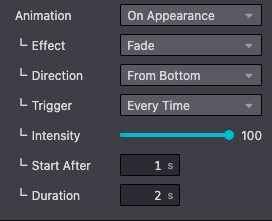
In standard, you can add animations to column, text and image elements when they appear, thanks to the Website Builder. Odoo detects when your element is in the viewport and launches the animation. A large selection of animations is available:
Fade in
Bounce in
Rotate in
Zoom in
…
You can easily define an animation on a column in your custom theme. You need to add two classes:
o_animate and o_anim_fade_in. The second class changes depending on the type of animation you
want to use.
Add the o_animate_both_scroll class to launch the animation every time the column appears on the
screen. The animation is only launched once by default.
You should also define an animation-duration and an animation-delay directly in the style
attribute.
Additionally, you can add an animation direction. For instance, to animate the element from the
bottom of the screen, add a o_anim_from_bottom class and set a --wanim-intensity in the style
attribute to control the animation’s direction intensity.
Use
<div class="col-lg-6 o_animate o_anim_fade_in o_animate_both_scroll o_anim_from_bottom" style="--wanim-intensity: 100; animation-duration: 2s; animation-delay: 1s;">
    <h2>A Section Subtitle</h2>
    <p>Write one or two paragraphs describing your product or services.</p>
</div>
On scroll
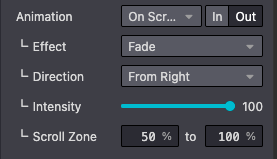
In the same way as we have seen above, you can add animations on scroll to column, text and image elements whenever the viewport scrolls through the animated element.
We can add 6 animation on scroll effects:
Fade
Slide
Bounce
Rotate
Zoom Out
Zoom In
Additionally, we can also set an in or out effect, an animation direction , the animation
intensity and a scroll zone.
Use
<div class="col-lg-6 o_animate o_animate_on_scroll o_animate_out o_anim_fade_in o_anim_from_right" data-scroll-zone-start="50" data-scroll-zone-end="100" style="--wanim-intensity: 100;">
    <h2>A Section Subtitle</h2>
    <p>Write one or two paragraphs describing your product or services.</p>
</div>
Option |
Data attribute |
Value type |
|---|---|---|
Intensity |
|
Integer (in the CSS) |
Scroll Zone Start |
|
Integer |
Scroll Zone End |
|
Integer |
Lásd még
On hover
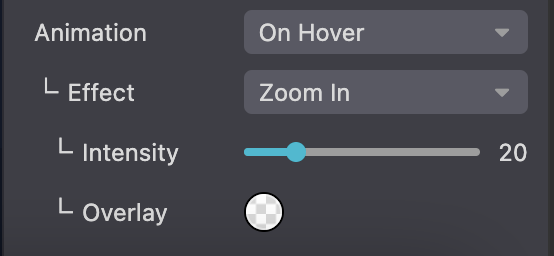
This third kind of animations is only related to images and triggered every time we hover on the animated image.
We can add 6 animation on hover effects:
Overlay
Zoom In
Zoom Out
Dolly Zoom
Outline
Mirror Blur
Use
Enable animations on hover by adding the o_animate_on_hover class on your image tag. You can
also define the type of animation in the data-hover-effect attribute.
<img
    src="..." alt="..."
    class="img img-fluid o_we_custom_image o_animate_on_hover"
    data-hover-effect="overlay"
    data-hover-effect-color="rgba(0, 0, 0, 0.25)"
/>
Option |
Data attribute |
Value type |
|---|---|---|
Animation |
|
String |
Intensity |
|
Integer |
Overlay / Stroke color |
|
Hexadecimal or RGBA value |
Stroke width |
|
Integer (saved as |
Lásd még