
Shapes
Shapes are handy if you want to add personality to your website.
In this chapter, you will learn how to add standard and custom background and image shapes.
Background shapes
Background shapes are SVG files that you can add as a decorative background in your different sections. Each shape has one or several customizable colors, and some of them are animated.
Figyelem
Odoo’s default shapes use the Odoo default colors palette map as reference. This way, colors will be automatically adapted to a new palette everytime it changes:
default_palette = {
    '1': '#3AADAA',
    '2': '#7C6576',
    '3': '#F6F6F6',
    '4': '#FFFFFF',
    '5': '#383E45',
}
Standard
A large selection of default background shapes is available.
Use
<section data-oe-shape-data="{'shape':'web_editor/Zigs/06'}">
    <div class="o_we_shape o_web_editor_Zigs_06"/>
    <div class="container">
        <!-- Content -->
     </div>
</section>
data-oe-shape-data is a JSON object containing information about your shape like the location
of the SVG file, the repeat and flip options, etc.
For example, you can flip the shape horizontally or vertically by using the X or Y axis like this:
<section data-oe-shape-data="{'shape':'web_editor/Zigs/06','flip':[x,y]}">
    <div class="o_we_shape o_we_flip_x o_we_flip_y o_web_editor_Zigs_06"/>
    <div class="container">
        <!-- Content -->
    </div>
</section>
Colors mapping
You can also change the default colors mapping of your shape either by switching colors in the current map or by creating a alternate map without modifying the initial one.
Switch colors mapping
First, we can use a shape like this:
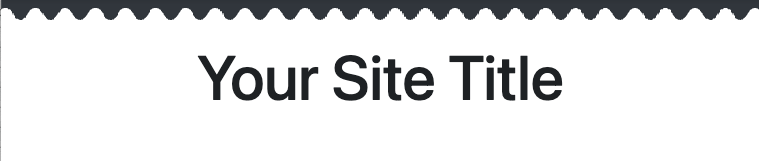
<svg xmlns="http://www.w3.org/2000/svg" xmlns:xlink="http://www.w3.org/1999/xlink" preserveAspectRatio="none" width="100%" height="100%">
    <defs>
        <svg id="zigs06_top" viewBox="0 0 30 30" preserveAspectRatio="xMinYMin meet" fill="#383E45" width="100%">
            <path d="M30,7.9C22.5,7.9,22.5,20,15,20S7.5,7.9,0,7.9V0h30V7.9z"/>
        </svg>
        <svg id="zigs06_bottom" viewBox="0 0 30 30" preserveAspectRatio="xMinYMax meet" fill="#FFFFFF" width="100%">
            <path d="M0,22.1C7.5,22.1,7.5,10,15,10s7.5,12.1,15,12.1V30H0V22.1z"/>
        </svg>
    </defs>
    <svg>
        <use xlink:href="#zigs06_top"/>
        <use xlink:href="#zigs06_bottom"/>
    </svg>
</svg>
Here, we use #383E45 and #FFFFFF which corresponds to the 5th and 4th colors in the Odoo’s
default color palette.
The shape is declared as follows in SCSS:
/website_airproof/static/src/scss/primary_variables.scss¶'Zigs/06': ('position': bottom, 'size': 30px 100%, 'colors': (4, 5), 'repeat-x': true),
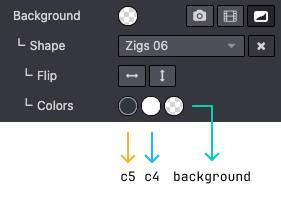
The blackish color is used at the top (c5), the lightish (c4) at the bottom and in between,
the shape is simply transparent.
We are going to rewrite the colors map with some key: value couples:
With color palette reference and custom color
/website_airproof/static/src/scss/primary_variables.scss¶ $o-bg-shapes: change-shape-colors-mapping('web_editor', 'Zigs/06', (4: 3, 5: rgb(187, 27, 152)))
Or just with references
/website_airproof/static/src/scss/primary_variables.scss¶ $o-bg-shapes: change-shape-colors-mapping('web_editor', 'Zigs/06', (4: 3, 5: 1));
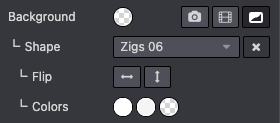
The c4 (white) will be replaced by c3 (whitish) and c5 (black) by c1 (white).
Results

Add extra colors mapping
Adding extra color mapping allows you to add a color variant to the template of a shape while keeping the original.
/website_airproof/static/src/scss/boostrap_overridden.scss¶$o-bg-shapes: add-extra-shape-colors-mapping('web_editor', 'Zigs/06', 'second', (4: 3, 5: 1));
<section data-oe-shape-data="{'shape':'web_editor/Zigs/06'}">
    <div class="o_we_shape o_web_editor_Zigs_06 o_second_extra_shape_mapping"/>
    <div class="container">
        <!-- Content -->
    </div>
</section>
Custom
Sometimes, your design might require creating one or several custom shapes.
Firstly, you need to create an SVG file for your shape.
/website_airproof/static/shapes/hexagons/01.svg¶<svg version="1.1" xmlns="http://www.w3.org/2000/svg" width="86" height="100">
<polygon points="0 25, 43 0, 86 25, 86 75, 43 100, 0 75" style="fill: #3AADAA;"/>
</svg>
Make sure to use colors from the default Odoo palette for your shape (as explained above).
default_palette = {
    '1': '#3AADAA',
    '2': '#7C6576',
    '3': '#F6F6F6',
    '4': '#FFFFFF',
    '5': '#383E45',
}
Attachment
Declare your shape file.
/website_airproof/data/shapes.xml¶<record id="shape_hexagon_01" model="ir.attachment">
<field name="name">01.svg</field>
<field name="datas" type="base64" file="website_airproof/static/shapes/hexagons/01.svg"/>
<field name="url">/web_editor/shape/illustration/hexagons/01.svg</field>
<field name="public" eval="True"/>
</record>
Field |
Description |
|---|---|
name |
Name of the shape |
datas |
Path to the shape |
url |
The location of your shape in the web editor. The file is automatically duplicated in
|
public |
Makes the shape available for later editing. |
SCSS
Define the styles of your shape.
/website_airproof/static/src/scss/primary_variables.scss¶$o-bg-shapes: map-merge($o-bg-shapes,
(
'illustration': map-merge(
map-get($o-bg-shapes, 'illustration') or (),
(
'hexagons/01': ('position': center center, 'size': auto 100%, 'colors': (1), 'repeat-x': true, 'repeat-y': true),
),
),
)
);
Key |
Description |
|---|---|
File location |
|
position |
Defines the position of your shape. |
size |
Defines the size of your shape. |
colors |
Defines the color c* you want it to have (this will override the color you specified in your SVG). |
repeat-x |
Defines if the shape is repeated horizontally. This key is optional and only needs to be
defined if set to |
repeat-y |
Defines if the shape is repeated vertically. This key is optional and only needs to be
defined if set to |
Add the option
Lastly, add your shape to the list of shapes available on the Website Builder.
/website_airproof/views/snippets/options.xml¶<template id="snippet_options_background_options" inherit_id="website.snippet_options_background_options" name="Airproof - Shapes">
<xpath expr="//*[hasclass('o_we_bg_shape_menu')]/header[hasclass('o_pager_nav')]//*[hasclass('o_pager_nav_btn')][last()]" position="after">
<button type="button" class="o_pager_nav_btn p-0 text-uppercase" data-scroll-to="x_scroll_bgshapes_airproof">
<span class="w-100">Airproof</span>
</button>
</xpath>
<xpath expr="//*[hasclass('o_we_bg_shape_menu')]/div[hasclass('o_pager_container')]" position="inside">
<div class="x_scroll_bgshapes_airproof">
<we-title>Airproof</we-title>
<we-select-page string="Airproof">
<we-button data-shape="illustration/airproof/01" data-select-label="Airproof 01"/>
</we-select-page>
</div>
</xpath>
</template>
Use it into your pages
In your XML pages, you can use your shape in the same way as the others.
<section class="..." data-oe-shape-data="{'shape': 'illustration/airproof/01', 'colors': 'c4': '#8595A2', 'c5': 'rgba(0, 255, 0)'}">
    <div class="o_we_shape o_illustration_airproof_01"/>
    <div class="container">
        <!-- Content -->
    </div>
</section>
You can also redefine colors using the data-oe-shape-data attribute, but this is optional.